

“Too many plugins” is the most common reason cited when a WordPress site performs poorly. While reducing total plugin count is a helpful heuristic, the raw number of active plugins is rarely the real issue.
As we emphasize in our core pillar guide on WordPress Speed Optimization, what matters is asset bloat and execution efficiency. Five poorly engineered plugins can destroy your site’s performance far more aggressively than thirty well-coded, single-purpose utilities.
Here is how to audit your active plugin stack, identify specific performance offenders using diagnostic tools, and replace bloated plugins with clean code.
How Plugins Degrade WordPress Performance
Plugins impair performance across three distinct areas:
Sitewide Asset Loading
Many plugins enqueue their JavaScript and CSS stylesheets globally across every page of your site, regardless of whether the plugin’s shortcode or block appears on that page. A contact form plugin loading 150 KB of scripts on your homepage (where no contact form exists) wastes visitor bandwidth and causes render-blocking delays.
Database Query Overhead
Plugins store settings and custom data inside your MySQL database. Complex plugins (like multilingual tools, page builders, or analytics trackers) execute heavy database queries on every page load. If unindexed custom post types or transient options clutter your database, server execution times skyrocket.
External API Requests & Webhooks
Plugins connecting to third-party services (social media feeds, CRM integrations, live chat widgets) frequently make blocking HTTP requests during page rendering. If the external server responds slowly, your WordPress server pauses execution until the request times out.
Auditing Plugins Step-by-Step with Query Monitor
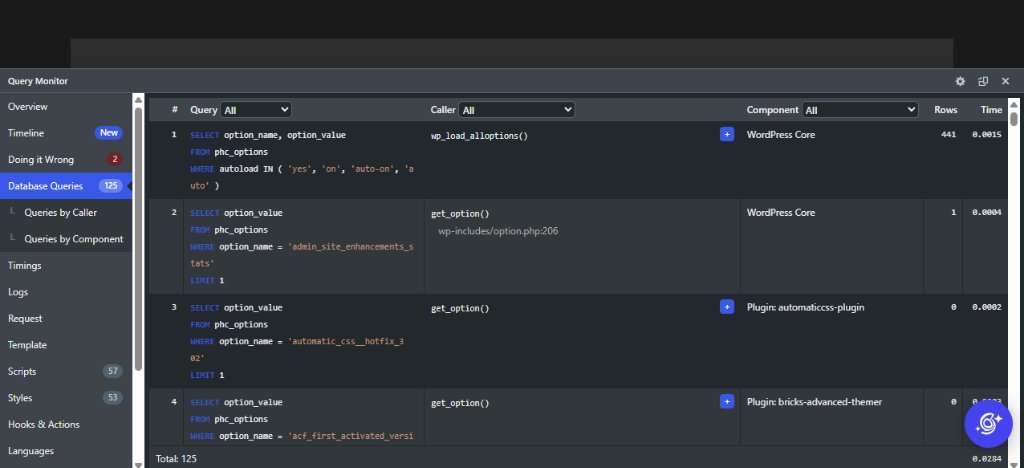
Instead of deactivating plugins at random, use scientific diagnostic tools to isolate bottlenecks.
Step 1: Install Query Monitor
Query Monitor is a developer plugin that adds a performance debugging toolbar to your WordPress admin header. It operates silently and provides deep visibility into page rendering mechanics.
Step 2: Analyze Scripts & Styles
Navigate to your key landing pages while logged in and open Query Monitor’s Scripts and Styles panels. Sort by file size and handle dependencies. Look for:
- Heavy JavaScript libraries (jQuery UI, Swiper.js, Slick Slider) loaded on pages where no carousel exists.
- Duplicate CSS files enqueued by multiple plugins.
Step 3: Inspect Database Queries
Select the Queries by Component panel inside Query Monitor. This breaks down total database execution time by plugin. If a single plugin accounts for 500+ milliseconds of query execution time or executes 100+ separate queries per page load, that plugin requires immediate attention.
To understand how high query volumes affect server response times, read our guide on WordPress Caching Explained.
Common Plugin Performance Offenders
While any plugin can be written poorly, certain plugin categories are notorious for performance overhead:
- Visual Page Builders (Elementor, WPBakery, Divi): These tools inject deep DOM nesting (1,000+ extra
<div>elements) and load massive sitewide CSS/JS bundles. - Slider & Animation Plugins (Slider Revolution, LayerSlider): Often load 300+ KB of JavaScript and heavy image assets above the fold, severely damaging LCP scores.
- Multilingual Plugins (WPML): Intercepts every post and menu query to map language translations, drastically increasing database load on enterprise sites.
- Analytics & Heatmap Plugins: Writing visitor tracking data natively to your WordPress MySQL database bloats
wp_optionstables rapidly.
Replacing Bloated Plugins with Clean Architecture
Once your audit isolates performance drag, apply these remediation strategies:
Selective Asset Loading
Use asset management tools (such as Asset CleanUp or Perfmatters) or custom PHP hooks (wp_dequeue_script, wp_dequeue_style) to disable plugin scripts on pages where they are not utilized.
Replacing Plugins with Native Functions
Many simple plugins (such as Google Analytics injectors, code snippet managers, or duplicate post tools) can be replaced entirely with a few lines of clean PHP inside a custom site plugin or theme functions.php.
Custom Development vs. Plugin Stacking
When a site relies on 40+ plugins to execute custom business logic, the cumulative technical debt creates a performance ceiling. Replacing a patchwork of third-party plugins with custom post types and lightweight native PHP eliminates bloat permanently.
If plugin bloat is crippling your site speed, our engineering team can audit your stack and refactor your codebase. Explore our Custom WordPress Development Services or review our WordPress Plugin Development capabilities.
Frequently Asked Questions
Is there a specific number of plugins a WordPress site should not exceed?
No. Quality matters far more than quantity. A site with 40 lightweight, well-coded plugins that only load scripts when required will outperform a site with 5 bloated plugins that execute heavy database queries sitewide.
Will deactivating a plugin delete its data from my database?
Deactivating a plugin merely stops its code from executing. Most plugins leave their options tables and custom database tables intact. To clean up leftover database bloat, you must delete the plugin or clean tables manually using database maintenance tools.
What is the difference between Perfmatters and Asset CleanUp?
Both plugins provide script managers to unload unused CSS and JavaScript files on a per-page basis. Perfmatters is a lightweight, performance-focused plugin that also includes database optimization and heart-beat control. Asset CleanUp focuses heavily on detailed CSS/JS asset rules and script placement management.
How do I clean up orphaned plugin data inside wp_options?
Over time, uninstalled plugins leave expired transients and autoloaded options inside the wp_options table. You can use database maintenance utilities (like Advanced Database Cleaner) or SQL queries to delete expired transients and set autoload = 'no' on non-critical options data.
Tired of plugin conflicts and sluggish performance? Our development team audits codebases and builds lightweight custom plugins tailored for speed. Schedule a Strategy Session with Alexander Online Media.


